UI Redesign Comparisons: Showcasing Product Improvements
A before and after screenshot is one of the quickest ways to show what a redesign changed, in a portfolio case study, a release note, or a stakeholder review. It only works if both screenshots were captured under the same conditions.
This guide is for product designers, front-end developers, and agencies presenting website or app redesigns.
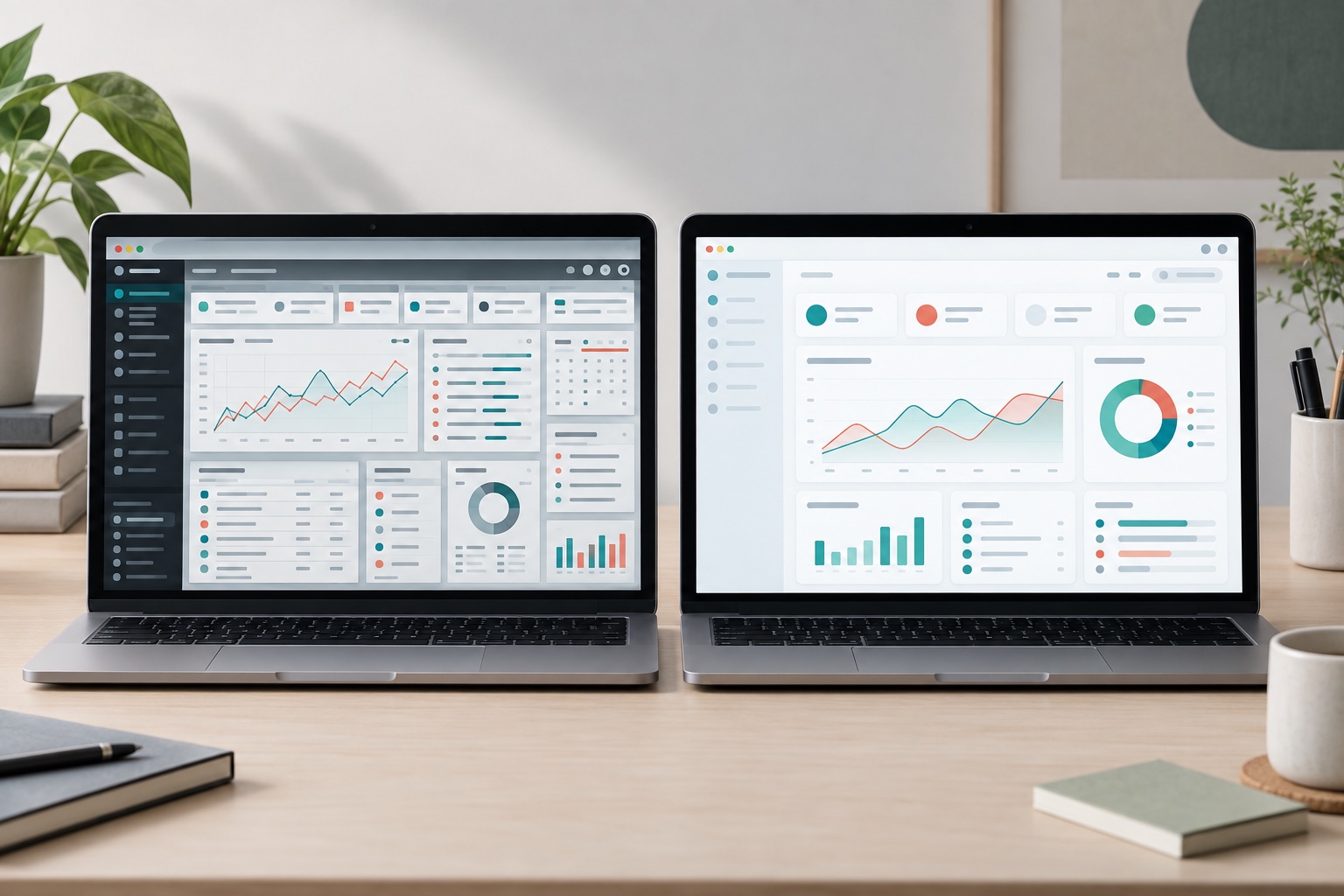
1. Capture Both Screens the Same Way
- Use the same viewport size. Browser developer tools let you set an exact width and height (for example a common desktop size and a common phone size). Use the same values for both versions.
- Keep browser zoom at 100% and use the same device pixel ratio, or one screenshot will be sharper or larger than the other.
- Match the scroll position. Capture either the visible viewport or the full page for both, not one of each.
- Match the state. Same signed-in or signed-out state, same light or dark theme, same language, and cookie banners or pop-ups closed in both.
Make a short capture checklist before opening either build. Include the route, viewport dimensions, zoom, theme, scroll anchor, and selected tab. If the page includes a chart or rotating banner, capture the same visible state. Otherwise the comparison can suggest a layout change when the only difference is what happened to be on screen.
2. Use the Same Content, and Keep It Private
- Show the same page with the same data, such as the same product, the same dashboard, or the same account, so the difference comes from the design.
- Use demo or test data. Do not publish screenshots containing real customer names, emails, orders, or internal numbers.
- If you must use a real screen, crop or blur private details in an image editor before creating the comparison. Before After Photo Maker - BAGen does not blur images.
Prepare a small demonstration account with realistic but fictional entries. Keep item names, quantities, and message lengths identical across versions. A card with a one-line title will look tidier than a card with a long title regardless of the design. If content was intentionally shortened as part of the redesign, explain that change in the caption rather than silently replacing it.
3. Get a Fair Screenshot of the Old Version
If the old design is no longer live, use screenshots saved before the launch, an older build or branch, or a web archive capture. Label the date or version. Do not recreate the old design from memory, because it is easy to make it look worse than it really was.
When only a low-resolution old screenshot survives, do not sharpen it aggressively while keeping the new screen pristine. Show both at a readable size and mention the source limitation. If the old state cannot be verified, label the pair as a concept comparison rather than evidence of a shipped improvement.
4. Only Add Metrics You Measured
If you measured the impact of the redesign, add a short caption with your own numbers, for example which form fields were removed and how the checkout completion rate changed afterwards. Only include metrics you actually measured, and say over what period. Let the before/after visuals show what changed.
Separate visual observations from outcome claims. Saying that the new form shows fewer fields is something readers can inspect. Saying that it converts better needs a measurement with a defined audience and period. A screenshot can illustrate the first claim; it cannot independently establish the second.
Which Layout to Use
- Slider or Split: best for two screenshots of the same size, because the divider reveals changes in the same place.
- Side-by-Side: better when the pages have different lengths or layouts.
- Interactive slider on a case study page: the Embed Slider generator creates a code snippet you can paste into a portfolio site that accepts custom HTML.
Common Mistakes
- Capturing the old version on a laptop and the new one on a large monitor.
- Filling the new design with polished demo content and the old one with empty or messy data.
- Leaving real customer data or internal URLs visible.
- Quoting improvement numbers that were not measured or that came from a different change.
How to Make It in Before After Photo Maker - BAGen
- Open the Before After Photo Maker and add both screenshots. They are processed in your browser and are not uploaded to our servers.
- Choose Slider or Split for same-size screenshots, otherwise Side-by-Side.
- Use Crop & zoom to position the navigation bars at the same height.
- Set the labels, for example "v1 (2025)" and "v2 (2026)".
- Export a PNG for slides and documents, or a GIF or video of the slider for a case study (sign-in required; free accounts can export one of each per day).
Limits
A static comparison shows how a screen looks, not how it behaves. For changes to animations, loading, or multi-step flows, a short screen recording of each version explains more than a screenshot.
For the next step, see our guide to combining two screenshots side by side.
Summary
Capture both versions at the same size, zoom, scroll position, and state, use the same non-sensitive data, and label the versions honestly. Then pick a slider for same-size screens and side-by-side for everything else.