How to Put Two Photos Side by Side Online
You have the two photos. You just want them next to each other in one file. Start with a two-photo layout, then check the crop before you download: a missing corner or one oversized subject can make an otherwise simple comparison look wrong.
For this walkthrough, think of a desk before and after a tidy-up. The useful detail is the desk surface, so both pictures need to show roughly the same area. The same approach works for a haircut, a cleaned patio, or a pair of product photos.
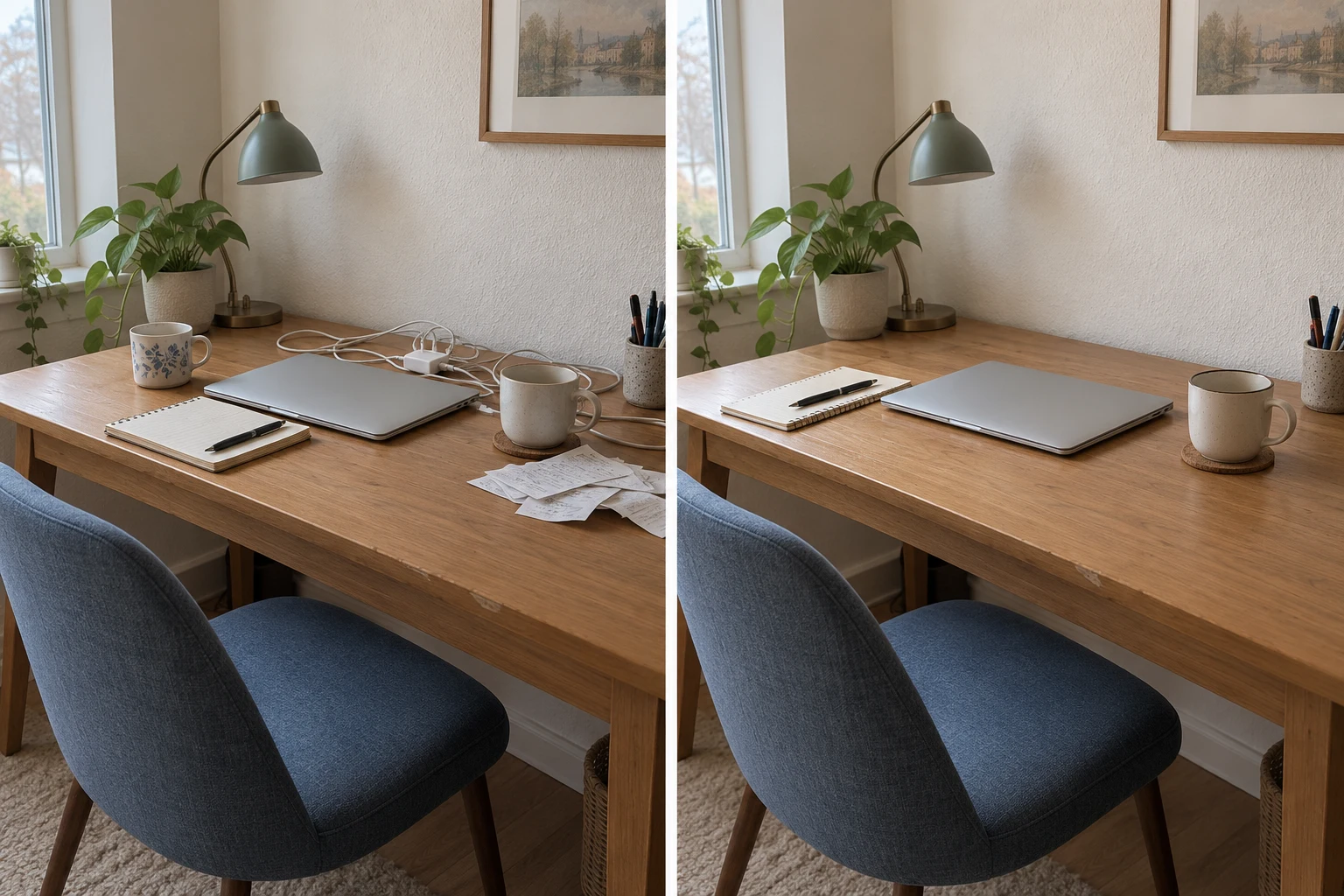
The short version
Open the photo maker, add your two originals, choose Side-by-Side, adjust each crop, and download a PNG. If you only need a still image, you can stop there; an animated reveal is optional.
Put my two photos side by side
1. Pick the two originals, not screenshots of them
Use the files from your camera roll or the original downloads. A screenshot of a picture inside a chat includes less image detail, and cropping away the chat interface leaves you with even fewer pixels.
For a before-and-after pair, put the earlier photo on the left. Look for one landmark you can match: the back edge of a desk, a door frame, or the top of a person's head. You do not need perfect alignment for side-by-side, but you do need enough shared context to tell what changed.
2. Add the photos and choose Side-by-Side
Open Before After Photo Maker using the button above. Add the first picture to the Before area and the second to After. Choose Side-by-Side in the layout controls if it is not already selected.
This keeps both pictures visible at once. Split View cuts between two images in the same frame, while a slider reveals one over the other. Those work best when the camera stayed in the same place. For two pictures taken from slightly different angles, start with side-by-side.
Here, combining means placing two existing pictures next to each other. It does not blend two people into one scene or stitch overlapping landscape photos into a panorama.
3. Fix the crop before you add labels
Look at the outer edges first. Is the lamp cut off? Has the person's shoulder disappeared? Open Crop & zoom in the editing controls. For each image, use Zoom, Horizontal, and Vertical to keep the important parts in frame. Then compare the size of the subject on both sides.
In the desk example, use the width of the laptop or the height of the desk as your reference. If the laptop is much larger on the right, zoom that side out or adjust the other crop. You are matching what the viewer sees, not simply making the two files the same dimensions. The Zoom control starts at 100%; if you cannot zoom out any further, adjust the other side or choose a different photo.
A portrait and a landscape photo can be awkward together. Try a different output ratio, or switch to the Vertical layout if keeping the scene matters more than having the pictures next to each other. When the original framing is very different, a new photo may work better than a tighter crop.
4. Keep the labels short and out of the way
Before and After are enough for most comparisons. Dates are more useful for progress pictures: June 1 and July 1 explain the interval without a paragraph on the image.
Place the labels over a quiet part of each picture, not the detail you want people to inspect. On a desk photo that might be the wall; on a haircut it should not be the hair. Check the result at the size someone will actually see on their phone. If a label is hard to read there, shorten it or change its placement.
5. Download the PNG, then open the saved file
Use the image download control to save the finished comparison as a PNG. Open that file before sharing it. Check all four edges, the label spelling, and whether both subjects still look the same size.
Share the downloaded file rather than taking a screenshot of the editor. PNG preserves the image you exported, but it cannot restore detail missing from a small source photo. If one side looks soft, replacing that source is usually more useful than exporting it at a larger size.
Why does the comparison still look a little off?
One side looks closer: match the subject size, not just the frame size. A tighter camera crop cannot always be corrected without losing context.
The after photo looks much brighter: check whether you changed the lighting or applied a filter to only one picture. For a comparison intended to show a real change, keep those conditions similar.
The pair looks cramped on a phone: two wide room photos become narrow when squeezed into a portrait canvas. Try stacking them vertically, or use a wider canvas and keep the caption outside the image.
You wanted two photos in one picture but got two separate posts: combine and download them first, then upload the resulting single PNG. A social-media carousel is a different format.
Can I do this on iPhone or Android?
Yes. The browser editor works with a file picker, so you can select photos from your phone without installing a separate collage app. Let both previews finish loading before adjusting the crop. When you download, your browser may save to Downloads or show a save/share sheet; check there if the picture is not in your photo library.
On a small screen, scroll back to the preview after changing settings. It is easy to adjust the label or layout and forget to check what happened to the image itself.
Is it free, and are my photos uploaded?
The photo maker currently allows two free PNG exports per day without an account, with a small watermark. Pro removes the watermark and export limits. See the pricing page for current plan details.
Photos used in the photo maker are processed in your browser. The hosted Embed Slider is different: it uploads the images selected for that hosted slider so it can display them on your website.
What if I want the comparison to move?
Finish the still comparison first. Once the crop and labels work, use the GIF or Video Maker for an animated reveal. An interactive slider embedded on a website is another option. A downloaded PNG remains a still image; it does not keep a draggable slider.