Before & After Photos for Renovation, Real Estate & Landscaping Projects
A room or garden comparison is most convincing when the two photos are taken from exactly the same spot. Then the viewer can see which wall, floor, or path changed, instead of trying to work out whether they are looking at the same corner.
This guide is for renovators, interior designers, home stagers, real estate agents, and landscapers. The most important step happens before any work starts: taking a "before" photo you can repeat later.
1. Plan the Before Photo So You Can Repeat It
- Take it before anything is moved. Once demolition, cleaning, or clearing has started, the original state is gone.
- Record the camera position. Use a tripod, mark its feet with tape, and take a quick phone photo of the tripod in place. Note the height and the distance to a fixed point such as a wall or a door frame.
- Record the lens and zoom. Use the same camera and focal length for the after photo. On phones, stay on the same lens (for example 1x) and do not zoom.
- Shoot several angles. Some views may be blocked by scaffolding or new furniture later, so give yourself options.
Keep a simple shot list with each room or viewpoint named. A file labeled kitchen-doorway is easier to pair later than an unlabeled collection of near-identical wide shots. Record which wall or corner the camera faced as well as where it stood.
2. Interiors and Renovations
- Keep the camera level. Tilting it makes walls and door frames lean, and the lean will differ between the two photos.
- Use a moderate wide angle. Wide enough to show the room, but avoid the most extreme ultra-wide settings, which stretch furniture near the edges.
- Match the lighting. Shoot at a similar time of day, with the same lights on and the same curtains open. If you turn every light on for the after photo, do the same for the before photo.
3. Home Staging and Real Estate Listings
- Show the same room from the same position. Buyers compare the photos with what they see at a viewing, so the comparison should match the real room.
- Disclose virtual staging. If furniture was added digitally rather than physically, say so. Many listing platforms and local rules require this disclosure.
- Do not hide defects. Removing clutter is staging; editing out damp patches or cracks misrepresents the property.
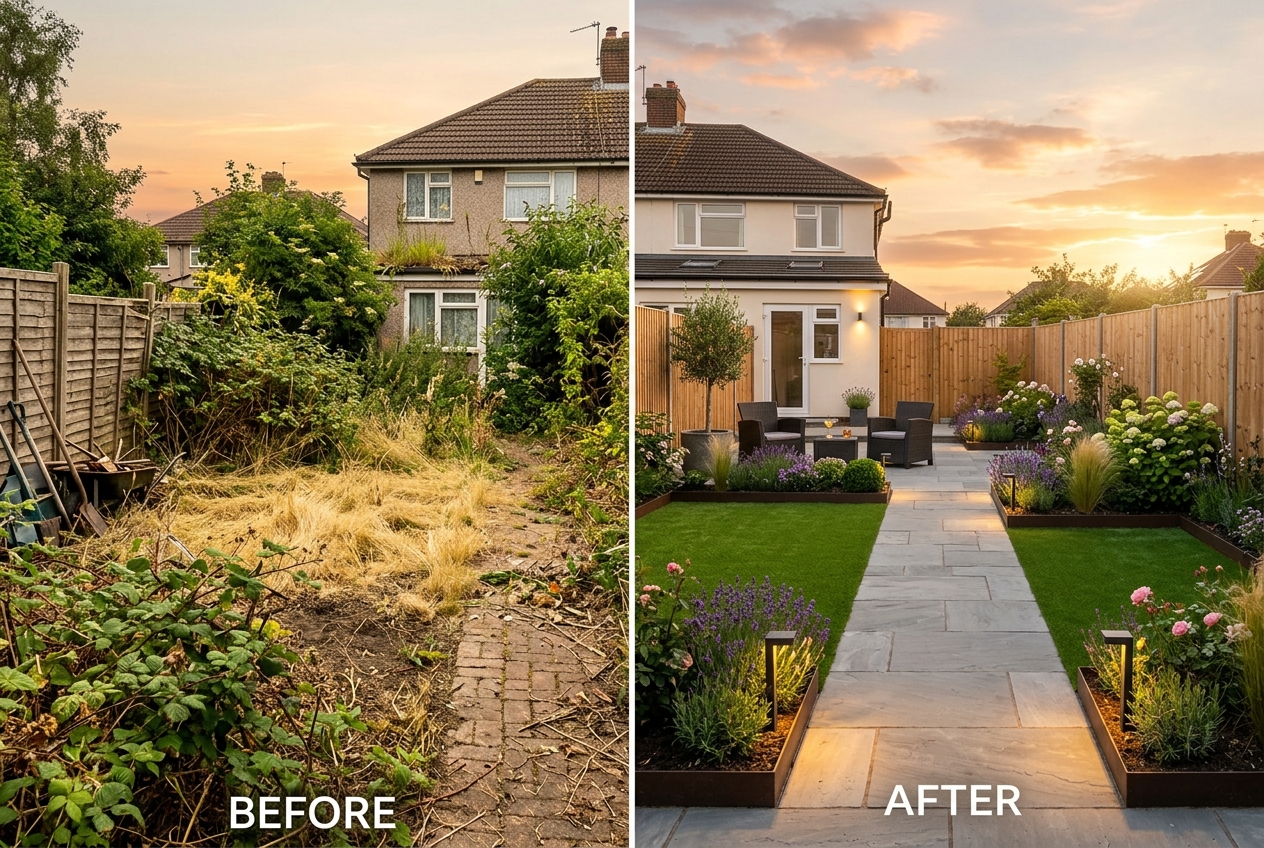
4. Gardens and Landscaping
- Use fixed landmarks to align the frame, such as a roofline, a chimney, a fence post, or a mature tree.
- Shoot in similar weather and season. Soft light on an overcast day avoids harsh shadows. A summer "after" next to a winter "before" exaggerates the change.
- Photograph stages separately. Paths, walls, and decks are finished on day one, but planting takes time to fill in. Label each photo with its real date rather than implying the garden looked mature on completion.
Which Layout to Use
- Slider or Split: best when the two photos line up closely. Dragging the divider shows exactly what changed in each part of the room.
- Overlay: fades one photo over the other; also needs closely aligned photos.
- Side-by-Side: the safest choice when the photos are not perfectly aligned, because small differences in position are less noticeable.
- Vertical: stacks the photos, which works for tall images and mobile screens.
For your own website, the Embed Slider generator creates a code snippet for an interactive slider that you can paste into any site builder that accepts custom HTML.
Common Mistakes
- Taking the before photo after work has already started.
- Standing in a different spot or using a different lens for the after photo.
- Shooting the after photo in golden-hour light and the before photo at midday.
- Using a slider for photos that do not line up, so the divider reveals a different view instead of a change.
- Presenting a virtually staged or digitally edited room as a real result without saying so.
How to Make It in Before After Photo Maker - BAGen
- Open the Before After Photo Maker and add the two photos. They are processed in your browser and are not uploaded to our servers.
- Choose Slider or Split if the photos line up, otherwise Side-by-Side.
- Drag each photo inside its frame until fixed features such as windows or rooflines match.
- Set the labels, for example "Before" and "After staging", or the real dates.
- Export a PNG (free plan: 2 per day, with a small watermark), or make a GIF or video of the slider moving across the image (sign-in required; free accounts can export one of each per day).
Limits
The editor can move each photo inside its frame, but it cannot correct a different camera angle or lens. If the photos were taken from different positions, use a side-by-side layout and say so in the caption.
For the next step, see our guide to using comparison photos in a service-business portfolio.
Summary
Plan the before photo so you can repeat it, match position, lens, and light for the after photo, and choose a slider only when the two photos truly line up. Be open about staging, editing, and the dates of each photo.