How to Use Before & After Photos to Grow Your Business
People who hire a cleaner, a car detailer, or a contractor want to know what the finished work will look like. A before and after photo shows them directly, as long as the photos are honest and taken the same way.
This guide is for small service businesses such as cleaning, auto detailing, renovation, landscaping, repair, and design studios. It covers how to take credible comparison photos, what to check before you publish them, and which format fits each place you post.
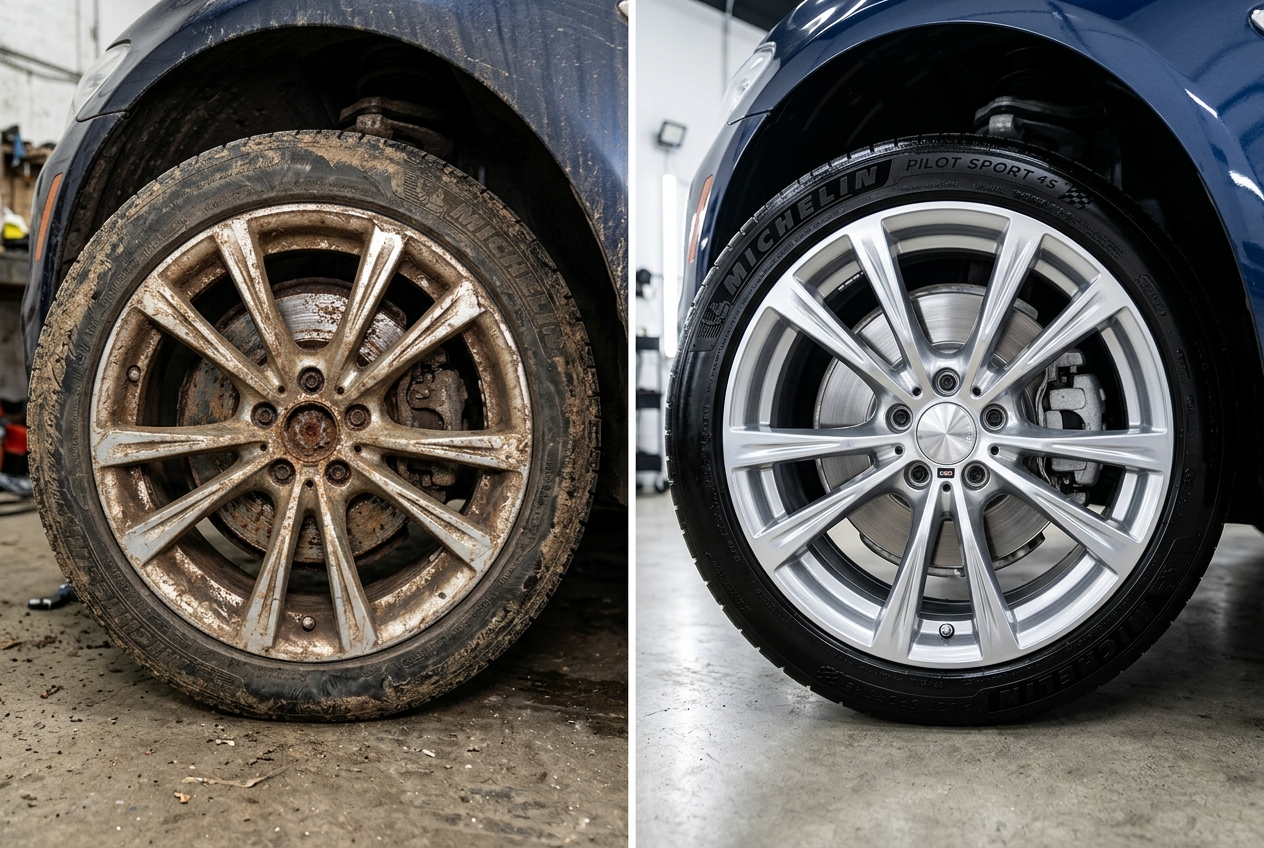
What Makes a Comparison Credible
- Same angle, distance, and light. If the "after" photo is taken from a better angle or in better light, viewers notice, and the comparison loses its value.
- No editing of the result. Adjusting exposure the same way on both photos is fine. Retouching only the "after" photo misrepresents your work.
- Typical jobs, not only the best one. A gallery of ordinary jobs tells customers more than a single exceptional result.
- Context in the caption. Say what was done and how long it took, using real details from the job.
Photograph an ordinary job from arrival through completion. For a car interior, take one wide view and a matching close-up of the seat or footwell. Repeat those positions after the work. The wide pair establishes that it is the same vehicle; the close-up explains the detail without asking the viewer to zoom into a thumbnail.
Get Permission and Protect Personal Details
- Ask the customer before you publish photos of their home, car, or business, and tell them where the photos will appear.
- Crop or blur faces, house numbers, license plates, documents, and screens before you add the photos to a comparison. Before After Photo Maker - BAGen does not blur images, so do this in your photo editor first.
- Keep a simple record of who agreed and when, so you can remove a photo if a customer later asks.
Make the review part of the handover. Show the customer the actual pair you intend to publish, including the caption. Keep the originals separately from the cropped public versions. That makes it easier to correct an accidental disclosure without losing your own job record or confusing files from different visits.
Choose the Right Format for Each Channel
- Website gallery and business listings: a static side-by-side PNG is easy to view on any device.
- Portfolio pages on your own website: an interactive slider lets visitors drag between the two photos. The Embed Slider generator creates a code snippet you can paste into any site builder that accepts custom HTML.
- Social media feeds: a short video or GIF with a sliding reveal shows the change without the viewer having to tap. Video export uses your browser's built-in recorder, so the available formats (MP4 or WebM) depend on your browser.
- Tall mobile posts: the Vertical layout stacks the two photos, which suits narrow screens.
Write Honest Captions
Describe the work, not a promise: "Deep clean of a family car interior, about three hours" is more useful than "amazing results guaranteed". In many countries, advertising rules require before and after claims to be truthful and representative. Check the rules that apply to your industry and location.
A useful caption answers three questions: what was the starting condition, what work was completed, and what remains outside the frame? If a stain could not be removed, do not crop it out to suggest a complete restoration. Avoid attaching an unrelated testimonial or a result from a different booking to the image.
Common Mistakes
- Shooting the "before" quickly on a phone and the "after" with careful lighting.
- Using heavy filters that change colors, which is especially misleading for cleaning, paint, and detailing work.
- Posting stock photos or another company's photos as your own work.
- Showing identifiable people, addresses, or license plates without permission.
Another common mistake is photographing only the finished work. Add a before-photo reminder to your existing job checklist, before equipment or materials are brought into the scene. If the original state was never recorded, publish an after-only project photograph with an accurate caption instead of recreating a worse-looking before image.
How to Make It in Before After Photo Maker - BAGen
- Open the Before After Photo Maker and add the two photos. They are processed in your browser and are not uploaded to our servers.
- Pick a layout: Side-by-Side for most jobs, Slider or Split when the two photos line up closely, Vertical for tall images.
- Use Crop & zoom to align the same features in both frames.
- Edit the labels, for example "Before" and "After cleaning".
- Export a PNG. The free plan includes 2 exports per day with a small Before After Photo Maker - BAGen watermark. Pro plans export without the watermark and let you add your own logo.
Limits
A watermark or logo makes it clear where an image came from, but it does not stop someone from copying it. Before and after photos show what one job looked like; they are not a guarantee of the result on another job.
For the next step, see our guide to photographing renovation and landscaping projects.
Summary
Shoot both photos the same way, get permission, remove personal details, and write captions that describe the actual work. Then pick the format that fits where you post: a PNG for galleries, a slider for your website, and a short video or GIF for social media.