5 Tips for Taking Perfect Fitness Transformation Photos
A progress photo comparison only works if both photos were taken the same way. If the light, camera height, lens, or pose changes between the two, the picture shows those changes instead of the change you want to record.
This guide is for people documenting their own training and for coaches who photograph clients with their permission. It covers how to take and combine the photos. It does not give training, diet, or health advice.
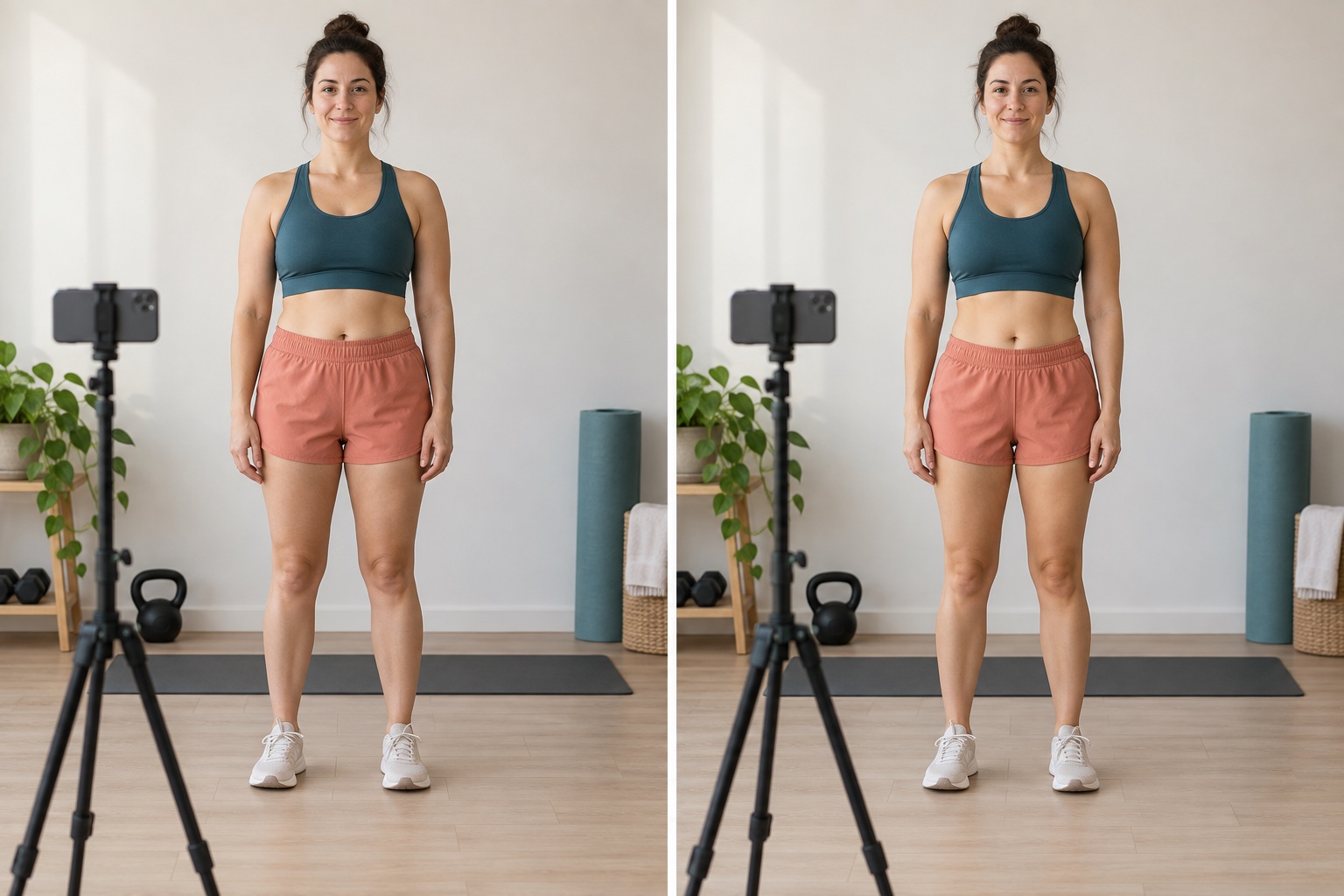
1. Keep the Light the Same
- Use the same spot and the same light source. Facing a window gives soft, even light. Ceiling lights directly overhead cast strong shadows that change how shapes look.
- Shoot at a similar time of day. Daylight changes in brightness and color through the day, so a morning photo and an evening photo will not match even in the same room.
- Turn off beauty and HDR effects if you can. Phone cameras may smooth skin or brighten shadows differently from one shot to the next.
Before taking the next set, look at the direction of the shadows on the wall. If daylight has moved to the other side of the room, wait or use the same indoor setup as last time. Matching the clock alone does not guarantee matching light.
2. Fix the Camera Height, Distance, and Lens
- Use a tripod or a stable shelf. Mirror selfies hide part of the body behind the phone and change your posture.
- Keep the camera level at about chest height. A camera tilted down makes the body look smaller at the bottom of the frame; tilted up, the opposite.
- Mark the camera position and where you stand. A piece of tape on the floor for each lets you repeat the setup months later.
- Use the same lens. On phones, stay on the main 1x camera. The ultra-wide 0.5x lens stretches whatever is near the edges of the frame.
- Use the self-timer so you can stand in position without holding the phone.
Save a quick setup photograph showing the tripod and floor marks. Write the lens setting in the same folder as the originals. This small record is easier to repeat than trying to remember where the phone stood several weeks later.
3. Wear the Same Clothes
Wear the same fitted outfit in both photos, such as the same shorts and top. Loose clothing hides shape, and different colors or patterns pull attention away from the comparison.
Check the waistband height and how the shirt sits, too. A folded hem or a different fit can hide the very area you intended to record. Keep the clothing comfortable enough that you can repeat a relaxed stance.
4. Repeat the Same Poses
- Take a relaxed front, side, and back photo: feet about shoulder-width apart, arms by your sides, looking straight ahead.
- Match the pose exactly. If you flex in one photo, flex the same way in the other. Comparing a relaxed "before" with a flexed "after" is misleading.
- Keep the same distance from the wall so the body is the same size in the frame.
Take the views in the same order each session. Leave a little space above the head and below the feet so later comparisons can be reframed without cutting anything off. Avoid choosing one unusually flattering frame from a long burst.
5. Use a Plain Background
A plain wall in a neutral color keeps attention on the person. Clear away clothes, furniture, and other objects that were not in the first photo.
Keep the person at the same distance from that wall. A consistent gap helps keep shadows and the apparent size of the background similar. Move temporary clutter before both sessions rather than digitally removing it from only the later image.
Common Mistakes
- Switching between the 1x and 0.5x lens, or zooming, between photos.
- Taking one photo in daylight and the other under indoor lights.
- Applying a filter or retouching only one of the two photos.
- Cropping the two photos differently, so the body appears at a different size.
- Labeling photos with a time span you have not checked (use the actual dates).
How to Combine the Photos in Before After Photo Maker - BAGen
- Open the Before After Photo Maker and add your before and after photos. The images are processed in your browser and are not uploaded to our servers.
- Choose the Side-by-Side layout for full-body photos. The Slider layout works well when the two photos are closely aligned.
- Use Crop & zoom to position the head and feet at the same height in both halves.
- Edit the labels to show the real dates or week numbers, for example "Week 1" and "Week 12".
- Export a PNG. The free plan includes 2 PNG exports per day with a small watermark. To make an animated GIF or video of a sliding reveal, use the GIF Maker or Video Maker (sign-in required; free accounts can export one of each per day).
Privacy and Consent
If you photograph clients, get their written permission before you share their photos, and tell them where the photos will appear. Let them approve the final comparison, and remove it if they change their mind.
Limits of Progress Photos
Even with a careful setup, posture, breathing, lighting, and the time since your last meal all affect how a photo looks. Treat a photo comparison as a visual record, not as a measurement.
For the next step, see our guide to how to put two photos side by side.
Summary
Keep everything the same except the thing you want to record: the same place, light, lens, camera height, clothing, and pose. Then line the two photos up at the same scale and label them with the real dates.